Showing posts with label iPad. Show all posts

Sunday, 19 July 2015

Leasing new iPad minis using DEP and Meraki


Last term we had 100 iPads come off lease and we replaced them with 150 iPad minis.  I posted about the decision to switch to minis here.  Things did not go as smoothly as they could have so here's a few tips if you're about to do something similar:

  • If devices are coming off lease, make sure you give yourself enough time to choose what you are replacing them with and to get the finances signed off.
  • Give teachers enough time to get all their photos/videos off their current devices.
  • If you are wiping your leased iPads to return them or sell them DO NOT USE MERAKI!!!!! Within Meraki's client screen there is an "erase device" button but this does not work properly if you are using "Find my iPad".  It looks like it has erased the device but it won't let you set it up as new.  Instead it demands the Apple ID password for the device.  We sold 40 of our 100 iPads to staff, and fortunately gave out about ten early because those staff came back and told us about the problem.  We then had to set up all 100 iPads again, read the tiny serial numbers at the back of the iPad so we could work out which password went with which device, log on to iCloud, turn off 'Find my iPad' and then log out again.  We were on a tight deadline to return the devices and this added hours to the process.
  • Make sure your supplier adds your new devices' serial numbers to DEP asap as they can take 24 hours to appear (in our case we had a hiccup that delayed deployment by a week.  This is the email you don't want to receive "The DEP transaction is suspended with Apple right now as there was an issue with it. It has needed to be pushed through manually at Apple’s end".  I never really found out what the "issue" was, only that the head of Apple NZ got involved and then it went up the chain in the U.S. too.  I'm hoping that this was just teething issues, as we were the first of our supplier's clients to use DEP).

Once our iPads finally appeared on DEP it was very simple to set up the devices wirelessly and a nice improvement over Configurator.  The only drawback is that we can no longer assign a name to the lock screen, instead I've advised teachers to add different wallpapers to each of their devices.  We also had to manually add the name of the device after set-up.

I've always found Meraki fiddly when installing a lot of apps on a device.  Our senior school's devices have 49 apps on them and they didn't all go through immediately.  However we seem to have got off lightly because the last 16 devices had certain apps that would not go through at all.  They were stuck 'waiting' or loading and it was very frustrating.  I ended up taking them home as our IT guru seems to think the problem lies with our connection with N4L (he's doing some techie things to sort that out).  The apps did load up fine at home but it wasn't what I had planned for my evenings!


So that was what I got up to in the latter part of Term 2.  Fortunately I had an assistant to help with the fiddly app-loading process.  We also leased 24 new Apple TVs so they needed to be swapped over as well.  While I was installing them I took the opportunity to enable restrictions so that I could hide the movies from the main menu.  This removes the cringe factor of seeing "Sex Tape" or "50 Shades of Grey" advertised!

Term 3 sees us introduce optional BYOD (iPads) to our Year 5 & 6 students.  I'm sure this will be a learning process as well but I am keen to get started.

Sunday, 31 May 2015

Switching to iPad Minis


It has been almost three years since we leased 100 iPads for our school.  Confession time, back then I thought it would have made more sense financially for us to purchase the iPads.  But the thing about technology, you just can't predict where it's going to go, and our wise principal knew what he was doing.

Things have changed a lot since 2012.  We have moved from a very decentralised way of iPad management to using Configurator and Meraki and specifying which apps are on the iPads (here's my post about that).  We now have 152 devices, 42 of which are iPad minis.  When I investigated the cost of leasing iPad minis I found that leasing six of them was equivalent to leasing four iPads.  I was given permission to trial a set and the feedback I got was that the smaller size was not an issue for the students, but the big benefit was the teachers having enough devices for their groups.  Subsequently all of our new devices have been iPad minis and they have been well-received by the team leaders who have been lucky enough to get them.

When the time came to decide what to replace our old iPads with, my recommendation was to bring in iPad minis.  This was endorsed by our team leaders.  Our supplier offered us a choice of the mini Basic (the original iPad mini), the mini Retina (iPad mini 2) or the iPad mini 3.  Our policy has always been to purchase the latest models, however I had read a number of articles, including this one, that said there were no real benefits to upgrading to the mini 3.  It was decided to go with the iPad mini 2, and on Friday we confirmed our lease for 150 of them.  The cost of the lease is actually less than what we paid to lease the 100 iPads three years ago!

We now have the interesting prospect of setting up 150 iPad minis and replacing the old iPads in a very short space of time (I underestimated how long the negotiating and approval process would take).  We do have a couple of things in our favour.  Firstly, Apple's Device Enrollment Program (DEP) has just arrived in New Zealand and should make set up easier and do away with having to use Configurator (although even our I.T. guru has not actually used it before, because it is so new).  Secondly, we sold about 40 of the iPads to our staff so can leave those until after we have returned the other 60.

It is going to be a very busy time about 5-10 working days from now (the time it will take to get the minis from our supplier).  Once I recover I will post about the (hopefully smooth!) process of using DEP and Meraki to set things up.

Sunday, 30 November 2014

A Simple Guide for Teachers: Using and Making QR Codes

Our principal approached me and asked what I thought the best way to have our students take an online survey on the school's iPads would be.  He'd already created the survey, he just needed everyone to be able to access the link.

For me this was a perfect opportunity to showcase how QR codes can be used to direct students to a particular website, without having to worry about them typing the URL in correctly.  We have included a free QR code reader app on all of the school's iPads, so all I had to do was generate a QR code that lead to the survey site, and a set of instructions for those teachers who hadn't used QR codes before.  I wanted to put information about generating your own codes in there too, in the hope that teachers would see how easy it is and feel confident giving it a go themselves.

Here is my instruction sheet:


Using QR Codes


A QR (Quick Response) Code is a square barcode
qrcode.26157027.png

that can be captured with a school iPad using the I-nigma app.


http://a1.mzstatic.com/us/r30/Purple6/v4/0c/8a/18/0c8a183b-33db-5d72-7334-03a568c26566/mzl.gaujwlpp.100x100-75.jpg


A common use of a QR code is to use it to take you to a particular website.  If you open the I-nigma app and position the barcode above so it is in the red square, it will take you to our school website (make sure you have logged on to Watchguard).  

Making QR Codes


If you have websites that you want to share with your students then creating a QR code for them will allow the students to easily find the sites.  You can also create QR codes for short amounts of plain text, which can be used for all sorts of things e.g. a treasure hunt.  And when you really get the hang of it you can record short amounts of audio and link through to them.


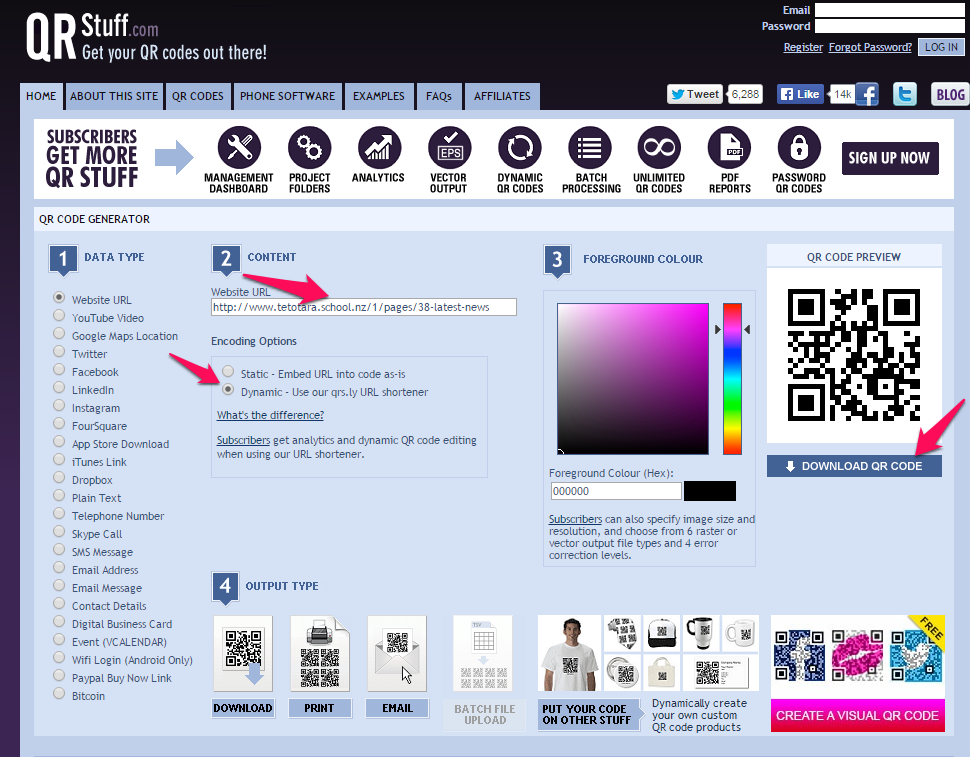
To make your own QR codes you can use a QR code generator on your laptop, like www.qrstuff.com.  


QR code generator.png


Here is how to make your own QR code for a website in three simple steps!


  • Copy the website URL you want to use and paste it into the box
  • Click on the “Dynamic” circle (it makes the QR code easier to scan)
  • Click on “Download QR Code”

Then you will have a picture of your code that you can print or include in a document.

Sunday, 23 November 2014

Why we moved to specified apps and centralised iPad management

Back in 2012 when we introduced iPads to the school we wanted to give the teachers the freedom to experiment with the iPads and download apps they thought might be useful.  All our teachers got a $50 iTunes card, set up their own Apple IDs, and had their iPads configured so if they downloaded an app on one iPad it automatically downloaded it to the other three.

It became clear, however, that this system wasn't ideal.  For one thing, volume purchasing was introduced a bit later but we couldn't really take advantage of the discounts because we didn't know what apps teachers had already purchased.  I ended up doing an app stocktake and found that across our school iPads we had over 600 different apps!

Here are some of the other issues we had:

  • Teachers were forgetting their Apple ID passwords and security questions and because they'd been set up personally there wasn't much I could do to help them.  Sometimes iPads had been passed on to new teachers without getting the security question details - for a while you didn't need them for purchasing apps then all of a sudden you did.  That caught us out.
  • Teachers were not discussing apps and sharing ideas much.  The huge range of apps across the school meant that you might not find someone else using the same ones as you.
  • Some teachers complained that it was difficult to find out which apps were the best ones to use.  They didn't have time to download and compare multiple apps.
  • There was no vetting system to assess whether teachers' app choices fitted the school's educational aims.
  • By paying for only one app per four iPads we weren't obeying Apple's terms and conditions and paying the developers properly for their work.  Once volume purchasing became available in New Zealand we had no excuses not to.
  • Some of the more expensive apps aimed at students with special needs had to be bought for a different iPad every year as the student changed teachers.

For these reasons it was decided that we would move to using school Apple IDs, a specified set of apps and a centralised iPad management system.  We have an App Request Form teachers can use if they have an app they particularly want to use.

We visited a couple of schools using different mobile device management systems to see them in action.  One system cost $30 per iPad to have managed, the other was free.  Ironically it was the free system, Meraki, that seemed to have more functionality.  I'll post about the process involved with moving to Meraki later.

I think you do lose the ease of teachers being able to explore and try new apps by going to specified apps and a centralised iPad management system.  However, here are the many benefits:

  • Having one set of apps that all the teachers in each year level has means that teachers don't have to worry about which apps to select.
  • Teachers can share ideas and support each other more easily.
  • Professional development can focus on apps everyone has.  
  • We can save money by using volume purchasing.
  • If teachers change Year levels they can simply swap iPads rather than having to buy all new apps.
  • The App Request Form allows apps to be assessed for educational suitability by senior management and checked to see if they duplicate an app we are already using.  
  • If we do decide to add an app we can use Meraki to easily push it out to all the iPads that need it.
  • We can deploy the more expensive apps needed by some students with special needs and then pull them back and push them to another iPad as they go through the school.
  • Students will be able to learn how to use an app in one class and then they can carry that knowledge through in the following years as it will still be being used.

Finally, as we move to introducing BYOD next year it means we can use Meraki to easily (I hope!) push out our specified apps to students' devices.


Wednesday, 15 August 2012

iPads - E-Learning Staff Meeting

Yesterday we held an e-learning staff meeting and went over some feedback that had been solicited from staff about how they were going with their iPads.  It has been ten weeks now since they were deployed.  There was a lot of very positive feedback and a few queries that were dealt with at the meeting.

Brian, our principal, showed everyone how to find eTAP, our student management system, on Safari and then save it onto their home screen.  He then made everyone's day by handing out $20 iTunes cards.

Several teachers had asked for more help sessions so we will run three more of these this term.  A good suggestion from the iPad feedback was to create a Google Doc for sharing ideas about what apps are working and what teachers are doing with them.  Andrea, our head of e-learning, has set this up and we spent a bit of time adding to it.

Andrea and I wanted to share a practical example of how to use some apps so we recreated a session we attended at the Mobile Devices in Classrooms conference earlier this year.  We asked the teachers to draw three scenes from a fairy tale and connect them to show a story. The apps we used were "Draw Free for iPad" and "Popplet Lite".  Here is the instruction sheet (although I couldn't add the pictures on the day as my mail wasn't working from my iPad so this is the better version).

The session went well.  The teachers did things like use the stickers and change the background in Draw Free, which we hadn't mentioned because we wanted to keep it simple.  Drawing three scenes was probably a bit ambitious due to the time constraints but it was good to see everyone having a go.

To finish the exercise Andrea asked everyone to get together in groups and come up with ideas about how the apps could be used in the classroom.  There was a great range from P.E. to Maori and everything in between.  Hopefully we will see some examples coming through on the shared Google Doc.


Sunday, 17 June 2012

iPad Deployment - Week Two


Our I.T. guy, Richard, has fixed our wi-fi network issues so we now don’t have to log back in with username and password after the iPads go to sleep.  Yay!

Drop-in iPad Meeting

We had another successful drop-in iPad meeting.  Four teachers turned up and they were a mixture of those who needed further help with the basics and those who had sped ahead and were asking difficult questions!  Either way I was really happy they chose to come.  Things we covered were:

  • Putting files into folders
  • Setting the orientation lock
  • Changing wi-fi settings (the fix to our log-on issues)
  • How to do updates
  • Finding apps in the App Store


All of these things were on our FAQ document but I know some people find the personal touch better.

I also showed one of the teachers the Show Me app and later emailed her this blog post from Jacqui Sharp which demonstrates what teachers can do with it.

The question of email came up.  We haven’t set up a class email for the iPads.  One idea was that teachers download the Google Search app and log in and out of their accounts when needed.  This could be cumbersome, I guess it depends on how often they will need to email.  Also, I have had issues with not being able to use Google Search to email the Book Creator app and I wonder if there may be problems with other apps too.  I see that you can hide your iPad mail account so this may be another way to handle mail.  I think the safest and easiest way may be to set up class emails.

Volume Purchase Program

I found out via twitter this week that the Volume Purchase Program is ‘coming soon’ to New Zealand.  I’m not sure what this will mean for us but in the meantime I guess we just have to keep going as we are.

Things We Need to Work On

  • We haven’t worked out why the videos we take won’t play on Apple TV.  I tried them out at home, and they worked fine, so the problem appears to be tied up with the network.
  • Can we access files on our network?  Some of the teachers at our drop-in meeting asked if they could access particular items from our network.  I am a fan of the Virtual Learning Network and have found a reference to the Files Connect app here, which sounds like it might fit the bill.  Another thing to bring up with Richard.
  • What is the best way to transfer photos?  Our head of e-learning and I tried the Bump app and I know that there is also a Photo Transfer app, Files Connect, emailing and Photo Stream.  I guess the only way to know is try a few and see if they meet our needs.
  • Richard is working on being able to print from the iPads and hopefully this will be in place soon.  He is using a program called Paper Cut.


I feel like my lack of knowledge was highlighted this week (in my defence I'm not an I.T. person, I'm a librarian who simply volunteered to help).  I’ve had an iPad since November but a lot of the things I need to know now are related to managing multiple iPads.  Richard comes in for four hours on Mondays so I have a barrage of questions for him and will keep on learning.  I am finding the new challenges exciting.

Sunday, 10 June 2012

Our Deployment of 90 iPads


Preparation

I was involved with the technical support side of the deployment.  With advice from our principal I came up with a set of instructions for the teachers to follow to set up the iPads and add some restrictions.  I tested them on someone completely new to iPads and realised I needed to add a picture of the iPad to show where the buttons are, after all their position changes depending on how you pick it up.  I also added images of the Settings and App Store icons so they could easily be found.

iPad Party!

On Tuesday we had an iPad party for all of our teachers.  Our principal, a very enthusiastic iPad user, talked about why we were using iPads (engaging for our children, clear links to learning, flexible, portable, personalised and fun).

Each teacher (and me in the library) was given four iPads, an Apple TV and a $50 iTunes gift card.

We asked the teachers to bring their laptops to the iPad party so that they could verify their Apple IDs.  They set up all four iPads before loading any apps.  This was so they could download apps to one iPad and have them automatically download to the other three iPads (do this by going to Settings, Store, and swiping apps on).  There is a bit of a lag when this happens but it was successful.  It avoided the necessity of having to sync to iTunes, making the set up simpler. 

I know there is a lot of discussion about schools syncing multiple devices to one Apple ID.  We took comfort in this email posted by a NZ educator who confirmed the situation with an iTunes employee.

Challenges with the Set Up

There were a few hiccups – existing Apple IDs with forgotten passwords and incorrectly redeemed iTunes gift cards were the main problems.  It is disappointing that if you redeem the gift cards incorrectly it doesn't give an error message, instead it tries to get payment information from you when you want to purchase an app.  The key is to watch for a message advising the amount of money you have just added to your account, then you know you have done the process properly.

Extra Help

We held drop in sessions for the following two afternoons and will have one more this Wednesday.  Teachers were encouraged to take the iPads home to have a play and a substantial number of them were using the iPads the following day.  There was a positive buzz in the staffroom as teachers swapped notes.  This weekend some of the teacher aides have taken iPads home to have a look too.

We have created a frequently-asked questions Google doc where teachers can share iPad tips and have their questions answered.  Currently this has information on updating apps and software, app selection sites and keyboard tips.

Teacher Responsibilites

Each teacher is responsible for charging and looking after their iPads.  There is no centralised computer that they need to sync with.

Benefits of School-Wide Deployment

In my opinion the choice to deploy across the whole school at once was a good one.  Obviously we had the finances to be able to do so but what it has meant is that there are lots of ideas and discussions happening and everyone can join in.  The teachers are learning and supporting each other.  The allocation of individual iTunes gift cards means teachers have control over the apps on their iPads.  A list of suggested apps was given but the remainder of money is up to the teachers to spend.

I went to an iPad conference recently and watched as two teachers struggled to download a suggested app because they didn’t have the appropriate password.  This was very frustrating and demoralising for them and I’m glad we have avoided that.

Community Involvement

Back in early May we advised parents via newsletter that iPads would be coming to the classroom.  Another newsletter put out on Thursday talked about the iPad party and the introduction of iPads into classrooms. It also mentioned a deal that has been arranged with Noel Leeming for families who wish to use the same technology at home.  The apps that were selected were put on the school website for parents to see.  An expo that is planned for later this year was also described as a way to see the iPads in action.

Apple TVs

I’ve been busy setting up the Apple TVs and showing teachers how to use AirPlay (fortunately all the TVs bar one have HDMI slots).  The teachers are really happy that they can mirror their iPad to their TV without having to set up any cables like they do for their PCs.  This will be a great way for them to share book apps and also to explain to their class how to use particular apps.

Technical Issues

We had a wireless upgrade before the iPads were introduced.  The biggest problem is that the Wi-Fi network that was set up requires you to log back in every time the iPads go to sleep.  We have passed this on to our I.T. guru and hope to get it fixed soon.  We also want him to find out why the videos we record do not play on Apple TV.

Some issues we have managed to fix for ourselves:

  • AirPlay button is missing – this happens when the Wi-Fi isn’t connected
  • Some apps are greyed out so you can’t purchase them – this is because of the restrictions we set up.  The apps must have some content that is not suitable for children.

Overall I would say that it has been an excellent first week with the iPads.  I will keep you informed as we move forward.

Wednesday, 25 April 2012

Mobile Devices in Classrooms Conference

Last Thursday I attended an interesting conference in Albany entitled "Mobile Devices in Classrooms". Although the focus was on teachers using iPads I think that as a librarian it is important to see how technology is being used in classrooms and to think about how it can fit into the library.


A key point made in the conference was that technology doesn't replace anything.  It is a very motivating tool that can be used to teach the existing curriculum in an exciting and engaging way.


Another point was that if you are new to iPads you tend to start with apps for consuming, then move on to apps for creating.  I can see this in my own learning curve with the iPad.  I started by downloading apps that you read and "drill and skill" type apps.  I'm now looking at how I can use apps like iMovie, Book Creator and Comic Life.


My bullet-point notes on the workshops I attended can be found here.


Sunday, 25 March 2012

E-reading Trial - Further Developments

Last week I met with two of our senior management team to discuss our e-reading trial.  I had heard that we were looking to bring iPads into the school and given the benefits of the bigger screen we agreed to postpone the e-reading trial until they arrived (hopefully next term).  This makes sense but I must admit that I'm not a patient person and I hate having to wait!


Another topic we discussed was how to measure whether the iPads make a difference to students' reading.  While the studies I have seen so far have measured improvements in attitude the senior managers felt that we should also try to assess improvements in reading level.  They also questioned whether we are able to know what reading level the e-books are.  These are two areas I will be looking into.


More research
Thanks again to the library listserv another interesting article about e-reading was brought to my attention - Middle school boys who are reluctant readers value reading more after using e-readers.  I think an interesting point is that reluctant readers "liked other students not knowing their reading level or choice of book".  The ability of an e-reader to enable anonymity around book choice is something I hadn't considered but I can see how this would be important to struggling students whose books may look small and babyish compared to those of more able  students.


New technology for the library
The introduction of the new iPad and subsequent drop in price of the iPad2 meant that I was able to purchase an iPad2 for the library.  Combined with an Apple TV I am hoping teachers will take the opportunity to occasionally show an e-book on the TV during their library time.  I have loaded up several Dr Seuss apps and start tomorrow.  Yay!